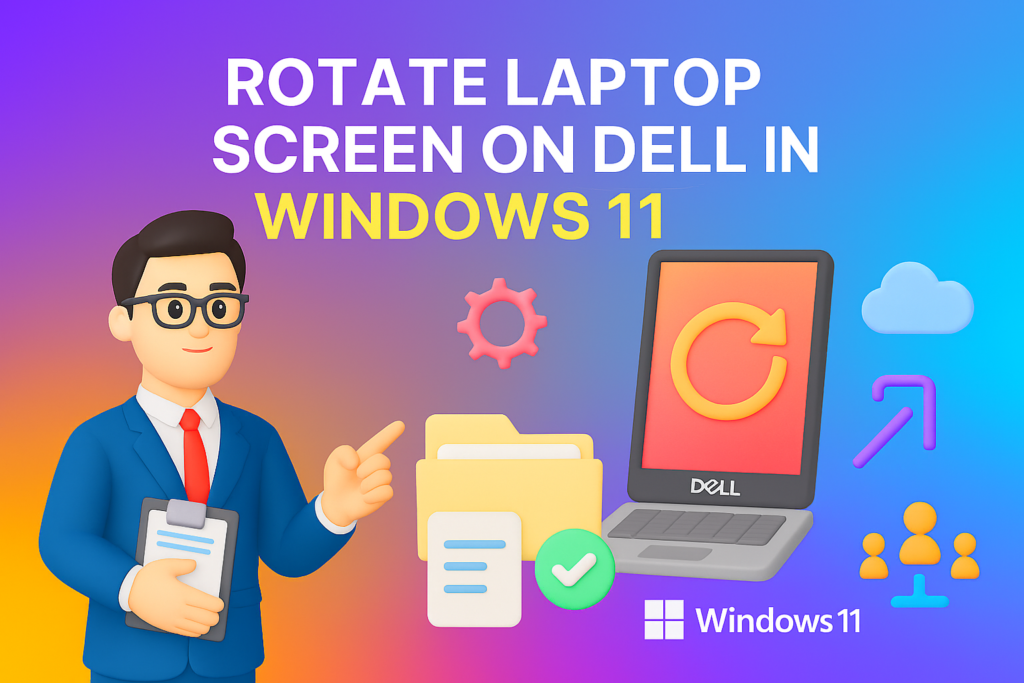
Want to Rotate Laptop Screen Dell Windows 11 in seconds? Whether it’s for presentation mode, coding, or fixing an accidental rotation, Windows 11 makes it simple. Here’s how to rotate your screen quickly using built-in shortcuts and settings.
By the end of this article, you’ll be able to rotate your screen with ease, whether you prefer using shortcuts, keyboard commands, or simple settings adjustments. So let’s dive into the methods to help you regain control over your laptop’s display!
How to Rotate Laptop Screen Dell Windows 11 Using the Shortcut Key
To rotate the screen on your Dell laptop running Windows 11, press the following keyboard keys:
- Ctrl + Alt + Arrow Up: This returns your screen to the default landscape orientation.
- Ctrl + Alt + Arrow Down: This rotates the screen upside down (180 degrees).
- Ctrl + Alt + Arrow Left: This rotates the screen 90 degrees counterclockwise.
- Ctrl + Alt + Arrow Right: This rotates the screen 90 degrees clockwise.
This shortcut works instantly and is great if you’re someone who frequently needs to switch between orientations for various tasks.
How to Rotate Screen on Dell Laptop Using Settings in Windows 11
If you prefer not to use keyboard shortcuts, you can also rotate your screen through the Display Settings in Windows 11. This is perfect if the shortcut method isn’t working for you or if you want to adjust the screen rotation settings manually.
- Right-click on your desktop: On an empty space on your desktop, right-click to open the context menu.
- Select “Display settings”: From the menu, click on “Display settings.” This will open the Display section of the Windows 11 settings.
- Scroll down to “Display Orientation”: In the Display settings window, look for the “Display Orientation” dropdown.
- Choose the desired orientation:
- Landscape: Default mode for most users.
- Portrait: Rotates the screen 90 degrees for a vertical view.
- Landscape (flipped): Rotates the screen 180 degrees upside down.
- Portrait (flipped): Rotates the screen 90 degrees in the opposite direction.
5. Click “Apply”: After selecting the desired rotation, click on “Apply” to see the changes. If the rotation looks good, confirm by clicking “Keep changes.”
How to Rotate Laptop Screen Dell Windows 11 Using the Graphics Control Panel
If you want more control over your screen rotation or have custom settings, you can also use your Dell laptop’s Graphics Control Panel. Dell laptops often come with Intel Graphics settings that allow you to adjust screen orientation.
- Right-click on the desktop: Right-click on an empty space on your desktop and select the Intel Graphics Settings or Graphics Options (depending on your laptop’s configuration).
- Select “Display”: Once inside the Intel Graphics Control Panel, find the “Display” option.
- Choose “Rotation”: Under Display, look for the “Rotation” option where you can choose from different screen orientations.
- Select your desired rotation: Like the Display Settings, you can rotate your screen to Landscape, Portrait, or any custom angle.
- Click Apply: After making your selection, click Apply to save the changes.
Why You Might Need to Rotate Your Dell Laptop Screen in Windows 11
- Coding or development: If you’re a developer, you may prefer using a portrait mode to view long lines of code.
- Reading: Some users prefer rotating the screen for reading articles or books in a more vertical layout.
- Presentations: When showcasing a presentation or document, rotating your screen can help align content for a more visually appealing display.
- Troubleshooting: Sometimes, the screen accidentally rotates due to a shortcut press. Knowing how to revert it can save you time when you’re troubleshooting.
What to Do If the Screen Rotation Shortcut Doesn’t Work
Sometimes, the screen rotation shortcut may not work due to various reasons. Here are a few things you can try:
- Check your graphics driver: Outdated or missing drivers can cause problems with screen rotation. Make sure your graphics drivers are up to date.
- Enable Hotkeys: Sometimes, the hotkeys might be disabled. Go to your laptop’s system settings to make sure they’re enabled.
- Restart your laptop: A quick restart can resolve minor issues with display settings or drivers.
Final Thoughts
Now that you know how to rotate laptop screen Dell Windows 11, you can easily switch between different orientations depending on your needs. Whether it’s for coding, reading, presentations, or just fixing an accidental rotation, these methods will help you regain control over your display settings.
If you found this article helpful, feel free to share it with others. Need more tips on managing your Dell laptop?
Frequently Asked Questions (FAQ)
Q1: How do I rotate my Dell laptop screen back to normal in Windows 11?
Answer: To rotate your Dell laptop screen back to its default orientation in Windows 11, press the keyboard shortcut Ctrl + Alt + Arrow Up. This will return the screen to the standard landscape view.
Q2: Can I rotate my Dell laptop screen using the keyboard?
Answer: Yes! You can rotate your Dell laptop screen using keyboard shortcuts:
Ctrl + Alt + Arrow Up: Returns the screen to normal (landscape).
Ctrl + Alt + Arrow Down: Rotates the screen 180 degrees (upside down).
Ctrl + Alt + Arrow Left: Rotates the screen 90 degrees counterclockwise.
Ctrl + Alt + Arrow Right: Rotates the screen 90 degrees clockwise.
Q3: How do I rotate my laptop screen without using shortcuts in Windows 11?
Answer: You can rotate your screen without using shortcuts by going to Display Settings:
1. Right-click on your desktop and select Display settings.
2. Scroll down to the Display orientation section.
3. Select the desired orientation (Landscape, Portrait, etc.), then click Apply.
Q4: What should I do if the keyboard shortcuts aren’t working to rotate the screen?
Answer: If the shortcuts don’t work, make sure the hotkeys are enabled in your system settings. Additionally, check if your graphics drivers are up to date, as outdated drivers can sometimes cause issues with screen rotation. Restarting your laptop may also help.
Q5: Can I use the Intel Graphics Control Panel to rotate my Dell laptop screen?
Answer: Yes, if your Dell laptop has Intel graphics, you can access the Intel Graphics Control Panel by right-clicking on the desktop. From there, you can select Display and change the screen rotation settings.
Q6: How can I rotate the screen to portrait mode for reading?
Answer: To rotate your screen to portrait mode in Windows 11, go to Display Settings, select Portrait from the Display orientation dropdown, and click Apply. This is great for tasks like reading long documents or web pages.
Q7: Why does my Dell laptop screen rotate by accident?
Answer: Accidental rotation often happens when you press certain keyboard shortcuts by mistake. To fix it, simply use Ctrl + Alt + Arrow Up to return the screen to the default orientation. If the rotation continues to happen, check your hotkey settings.
Q8: Is it possible to rotate the screen on all Dell laptops?
Answer: Yes, most Dell laptops support screen rotation using the methods outlined in this article, including keyboard shortcuts and Display Settings. However, some older models or devices without certain graphic drivers may not support these features.