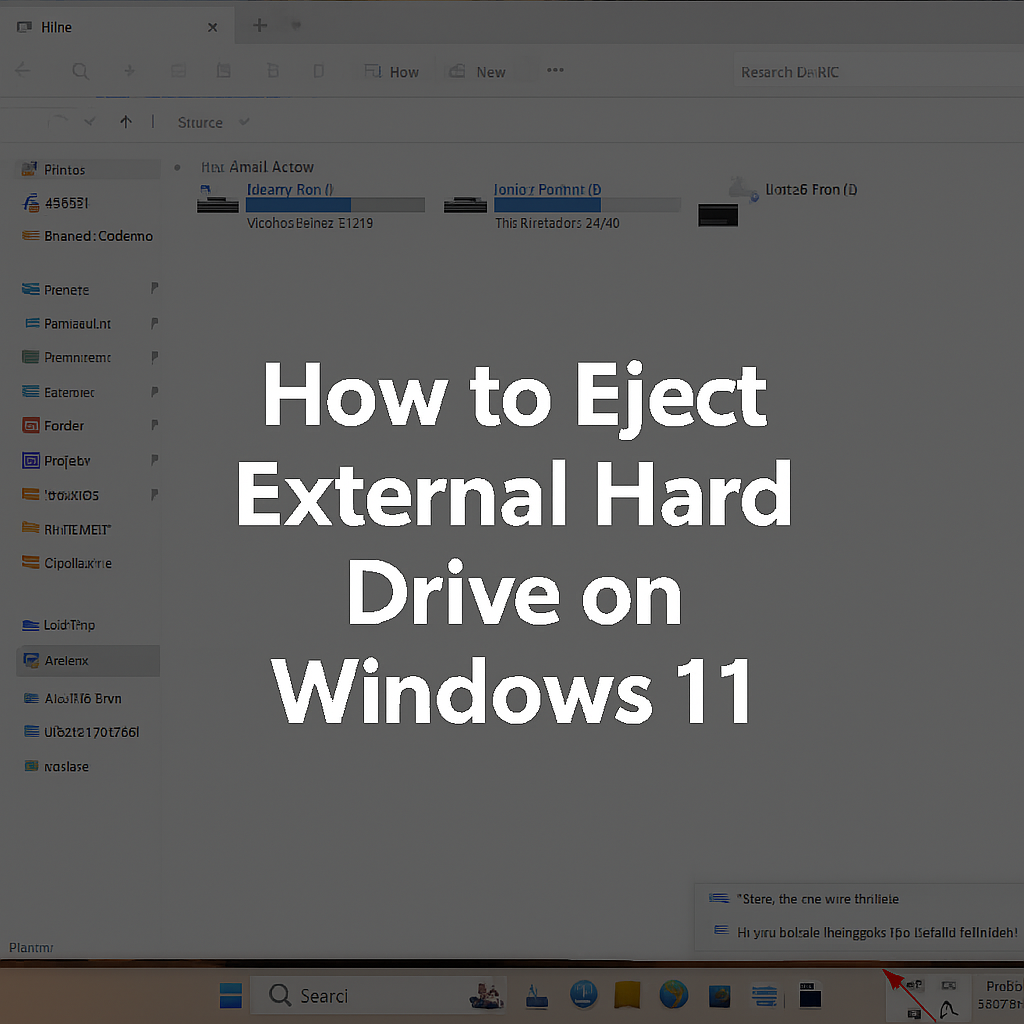
When it comes to using external hard drives and want to know How to Eject External Hard Drive Windows 11 them is just as important as plugging them in. Improperly removing an external hard drive can lead to data corruption, potential hardware damage, or lost files. If you’re wondering how to eject an external hard drive on Windows 11, you’ve come to the right place.
In this easy-to-follow guide, we’ll walk you through the safe How to Eject External Hard Drive Windows 11, highlight why it’s crucial, and explore a few troubleshooting tips in case something goes wrong. Let’s dive in and learn how to safely remove your external drive to keep your data safe and sound!
How to Eject External Hard Drive Windows 11: Why It Important to Safe Your Data
Before we dive into the steps, let’s understand why properly ejecting your external hard drive on Windows 11 is necessary.
1. Prevent Data Corruption:
If you unplug your external drive while files are still being transferred or accessed, there’s a risk that the data will become corrupted. This can result in missing files or files that can no longer be opened.
2. Protect Hardware:
Unplugging an external hard drive without properly ejecting it could potentially harm the drive’s hardware, shortening its lifespan or causing it to malfunction.
3. Safeguard Your Files:
By safely ejecting the drive, you ensure that all files are properly closed and that no processes are running in the background, which could prevent file loss.
4. Avoid Errors and Warnings:
If you don’t eject your external hard drive correctly, Windows 11 might throw up error messages when you try to reconnect or use the device again. This can be time-consuming to fix.
Step-by-Step Guide on How to Eject External Hard Drive Windows 11
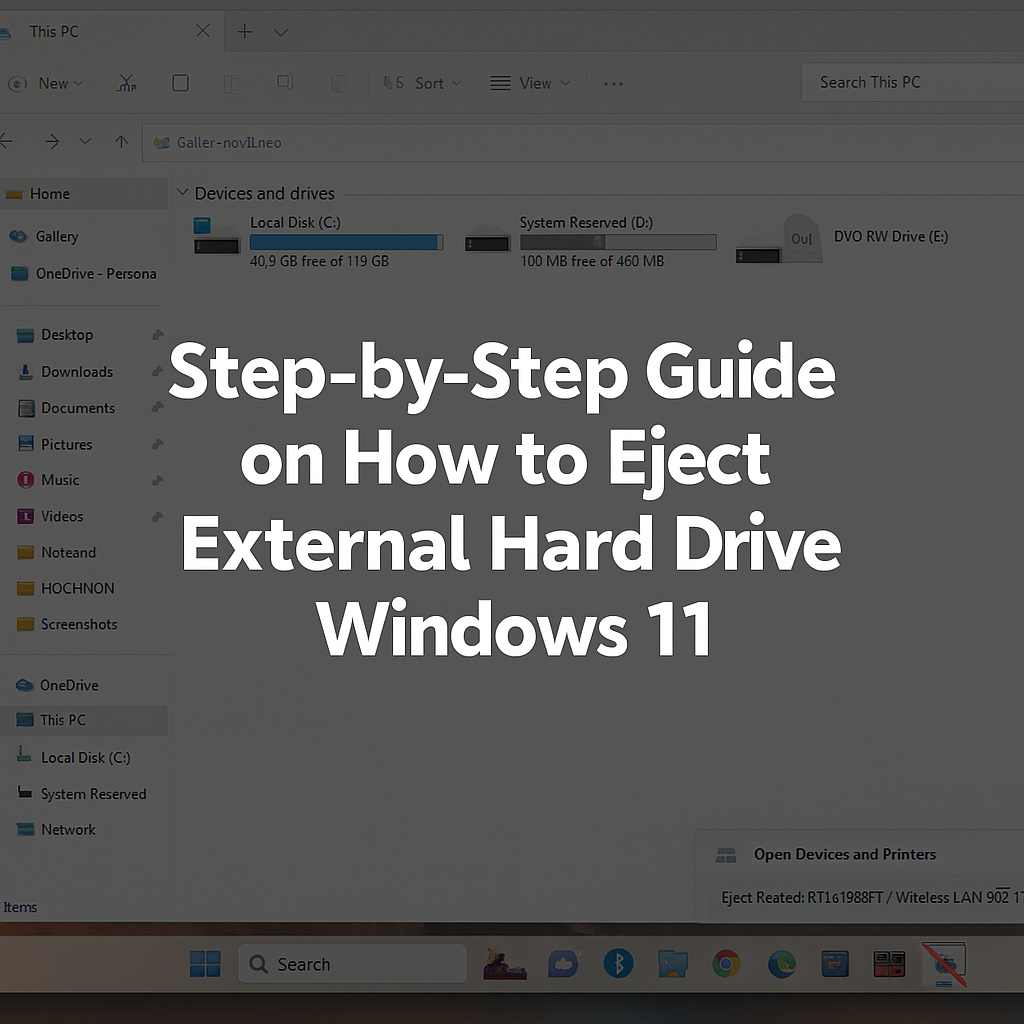
Now that you understand why safe ejection is essential, let’s walk through the simple steps of how to eject your external hard drive on Windows 11.
Method 1: Using the Taskbar Icon
The easiest and fastest way to eject your external hard drive is through the taskbar.
1. Look for the “Safely Remove Hardware” Icon:
- On the bottom-right corner of your screen, near the clock, you’ll see the USB icon. This is the “Safely Remove Hardware” icon.
2. Click the Icon:
- Click on the icon, and a list of connected devices will appear. You should see your external hard drive listed here.
3. Select Your External Hard Drive:
- Click on the name of your external drive. A message will appear saying that it is safe to remove the device.
4. Wait for Confirmation:
- Wait a few seconds to ensure the system has safely disconnected the external drive. Once you see the message, you can unplug the device.
Method 2: Using the File Explorer
You can also eject your external hard drive directly from the File Explorer.
1. Open File Explorer:
- Press Windows + E to open File Explorer.
2. Find Your External Hard Drive:
- In the left pane, you’ll see your external hard drive under This PC. Right-click on it.
3. Select “Eject”:
- From the context menu, select Eject. Windows will notify you once it’s safe to remove your external hard drive.
Method 3: Using the Device Manager
- For users who like to dive deeper into Windows’ functionality, you can eject the external hard drive from the Device Manager.
1. Open Device Manager:
- Right-click the Start button and select Device Manager.
2. Find Your External Hard Drive:
- In Device Manager, expand the Disk Drives section. Right-click on the external hard drive and select Uninstall Device.
3. Confirm and Eject:
- Confirm the action. Your external hard drive will be disconnected from Windows 11, and you can safely remove it.
Method 4: Eject Using the Right-Click Menu
Another easy method is to use the right-click menu in This PC or File Explorer:
- Open File Explorer and find your external hard drive under This PC.
- Right-click on the Drive and select Eject.
- Wait for confirmation that it’s safe to remove the device.
Troubleshooting: What to Do If You Can’t Eject Your External Hard Drive
Sometimes, you might face issues with ejecting your external hard drive, even after following the steps correctly. Here are a few common problems and their solutions:
1. “Device in Use” Error
If Windows 11 tells you that the device is in use, it means some process or application is still running on your external drive.
Solution:
Close any files or programs that may be using the drive.
- Open Task Manager (Press Ctrl + Shift + Esc) and end any processes that could be using the drive.
2. The Eject Option Is Greyed Out
If you don’t see the eject option, it’s possible the system hasn’t recognized the device properly.
Solution:
Restart your PC and try again.
- Check if the drive is still showing up in Device Manager or File Explorer. If not, try reconnecting it.
3. External Hard Drive Not Showing Up
If your external hard drive doesn’t appear in File Explorer, it might not have been recognized by the system.
Solution:
- Reconnect the external drive and make sure it’s securely plugged in.
- Check the USB cable and port for any issues.
If you’re someone who likes to customize your tech setup, you might be interested in knowing how to rotate your Dell laptop screen on Windows 11. This can be useful when you need a vertical display for certain tasks. To learn more, check out our guide on How to Rotate Laptop Screen Dell Windows 11: Quick and Easy Methods.
Alternative Ways to Safely Remove an External Hard Drive in Windows 11
If you’re still struggling with the eject process, here are a couple of advanced options:
Use Windows PowerShell to Eject the Drive
1. Open PowerShell as Administrator:
- Type “PowerShell” in the search bar, right-click on it, and choose Run as Administrator.
2. Type the Eject Command:
Use the following command to eject your external hard drive:
- `Get-WmiObject -Query “SELECT FROM Win32_DiskDrive WHERE MediaType = ‘Fixed hard disk'” | ForEach-Object { $_.PnpDeviceID }`
Conclusion
Ensuring that you safely eject your external hard drive is crucial for both protecting your data and maintaining the longevity of your hardware. By following the simple methods outlined in this guide, you can avoid potential problems like data corruption and hardware damage. Whether you prefer using Taskbar shortcuts, File Explorer, or Device Manager, Windows 11 offers several ways to safely remove your device.
Now that you know how to eject your external hard drive properly, take a moment to share this article with others who may benefit from it. Have you encountered any issues while ejecting your device? Leave a comment below or share your thoughts!
Answer and Question: FAQ
Q1: What happens if I don’t eject my external hard drive properly?
Answer: Not ejecting your external hard drive properly can result in data corruption or file loss. It may also harm the hardware over time.
Q2: Why does Windows 11 say the device is in use when I try to eject it?
Answer: This usually happens if files or applications are open on the external drive. Make sure to close everything before attempting to eject.
Q3: Can I use the external hard drive on a different PC without ejecting it?
Answer: While it’s possible to unplug the drive, it’s highly recommended to eject it properly to avoid corrupting files.
Q4: How can I check if the external hard drive is working fine after ejection?
Answer: After safely ejecting and reconnecting, check if the drive is recognized in File Explorer or Device Manager.